Lessons & Homework
Lesson types, statuses, and how to complete and submit your work.
Lesson Types
Your teacher creates three types of lessons:
| Type | Purpose | Feedback |
|---|---|---|
| Class | Live or synchronous sessions with your teacher. May include a shared document you work on together. | Real-time during the session |
| Exercise | Practice activities — multiple choice, fill-in-the-blank, matching, sentence building, audio, and more. | Immediate (auto-checked) |
| Homework | Assignments to complete on your own and submit for review. | Teacher reviews and grades with written feedback |
Lesson Statuses
Every lesson moves through a series of statuses:
| Status | Meaning |
|---|---|
| Added | The lesson has been assigned to you but you haven't opened it yet. |
| Started | You've begun working on the lesson. Your progress saves automatically. |
| Passed | You've completed the lesson (finished all exercises or clicked "Finish"). |
| Verified | Your teacher has reviewed your work and confirmed completion. |
| Canceled | The lesson was canceled by the teacher. |
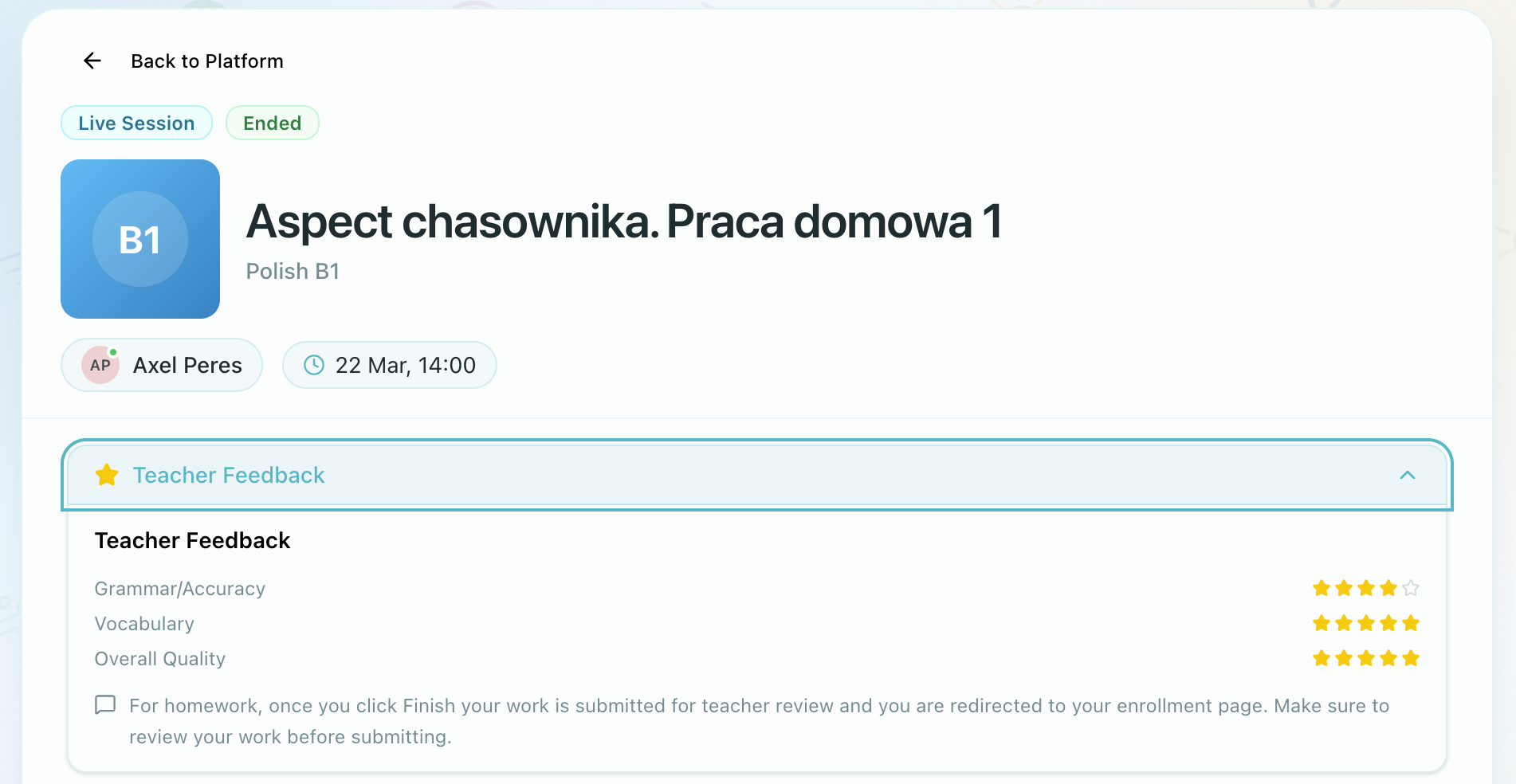
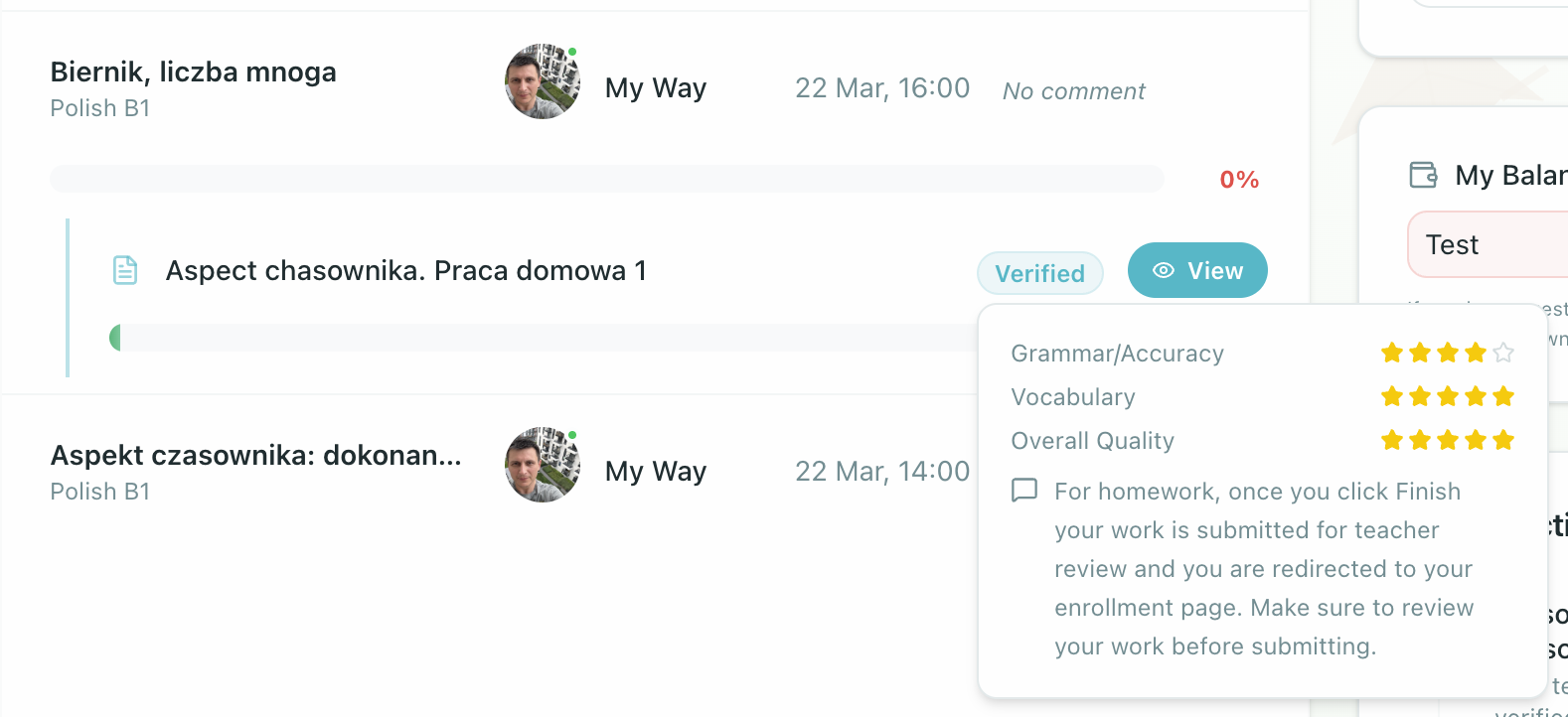
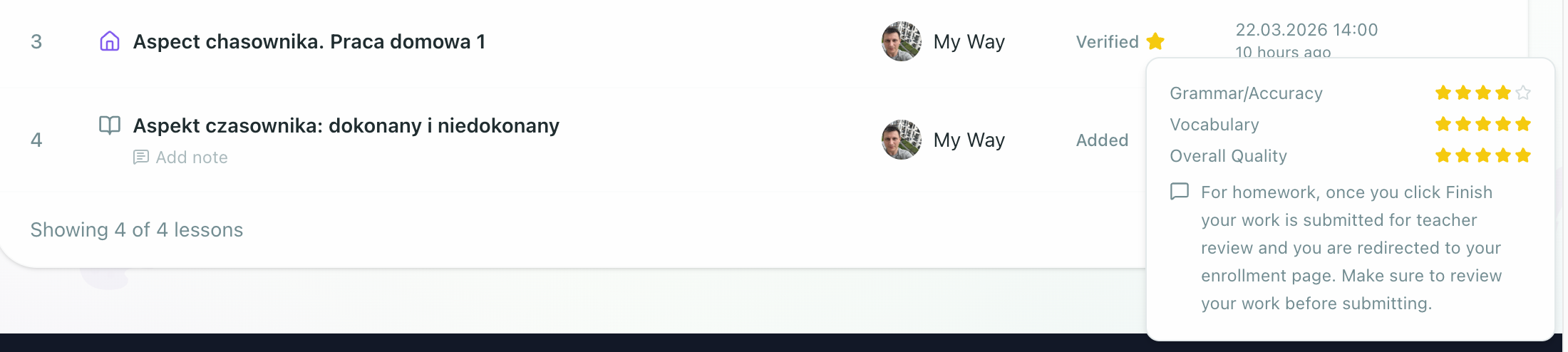
For Homework specifically, once you click "Finish" on the bottom panel, your work is submitted for teacher review. The teacher then verifies it and may leave feedback with scores on Grammar/Accuracy, Vocabulary, and Overall Quality (each rated 1-5 stars), along with a written comment.
Completing a Lesson
- Open a lesson from your Dashboard, My Enrollments, or Studies page
- Work through the content and exercises — progress saves automatically
- When finished, click "Finish" on the bottom panel to submit
For homework, once you click Finish your work is submitted for teacher review and you are redirected to your enrollment page. Make sure to review your work before submitting.
Viewing Feedback
After your teacher reviews homework, you'll receive a notification and the lesson status changes to Verified. You can see feedback in several places:
- In the lesson — a collapsible "Teacher Feedback" banner appears above the editor toolbar showing scores and the teacher's comment
- On the Dashboard — click the "Verified" badge on any homework to see the feedback in a popover
- On the Enrollment page — click the star icon next to verified homework for the same popover
Next Steps
- Progress Tracking — Monitor your achievements