Vocabulary
How to add words to your vocabulary, translate them, and practice with the Cards game.
Your Vocabularies
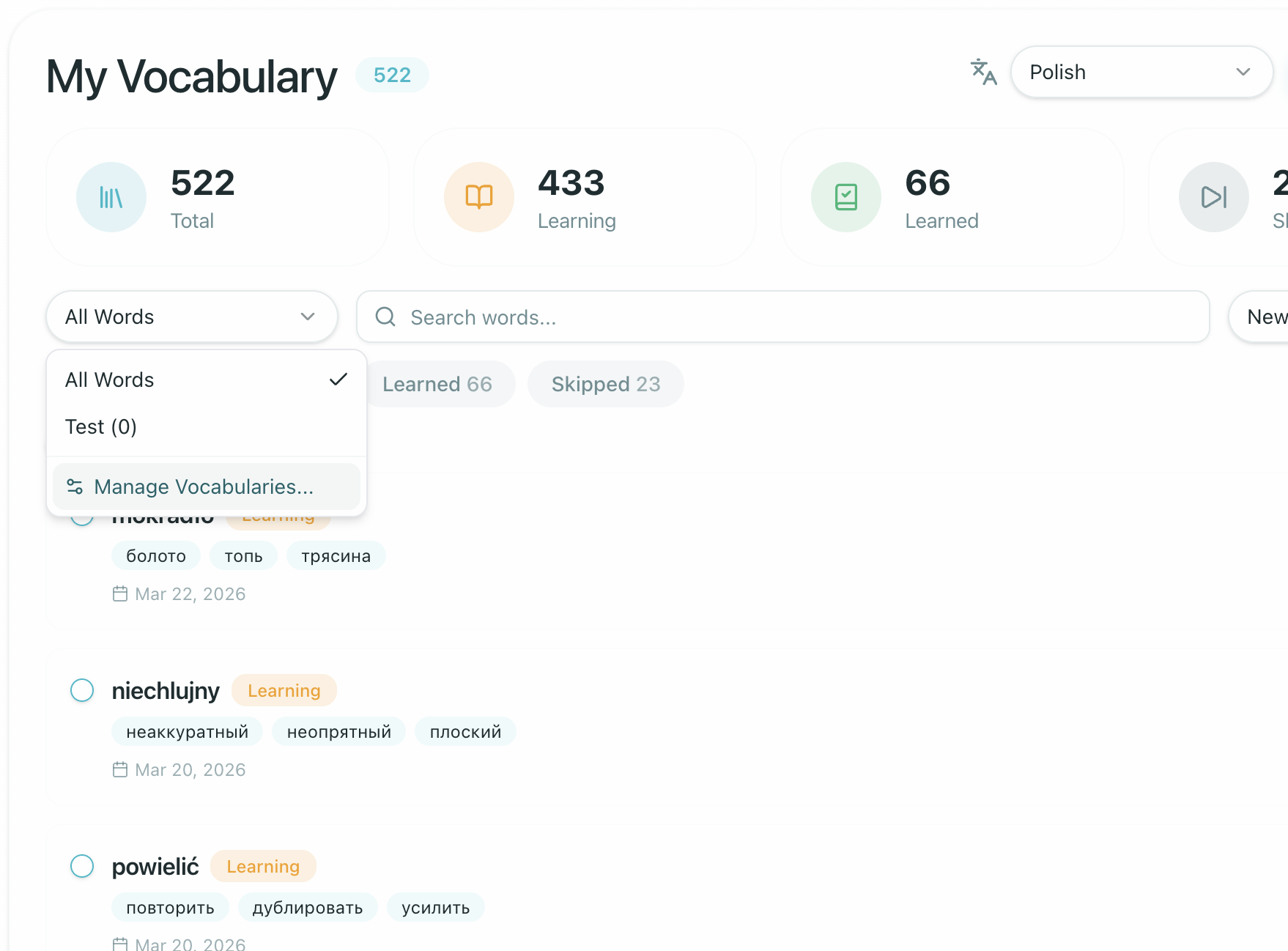
You can have up to 5 vocabularies. This lets you organize words by topic, course, or however you prefer.
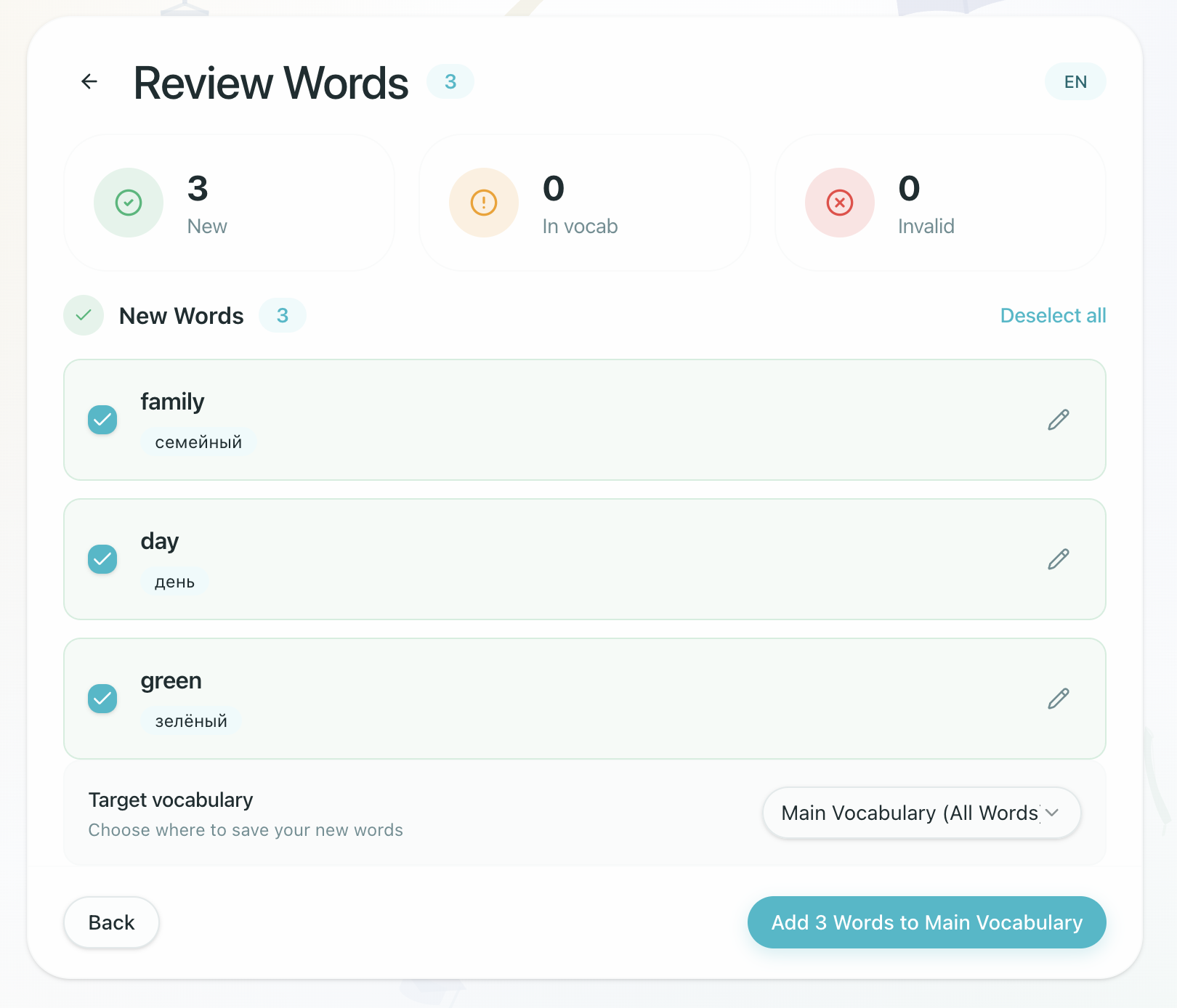
When adding words, you choose which vocabulary to save them into. Translations are automatically created into the language you set as your native language in your Profile settings.
Adding Words to Your Vocabulary
There are two ways to add words:
From the Vocabulary Page
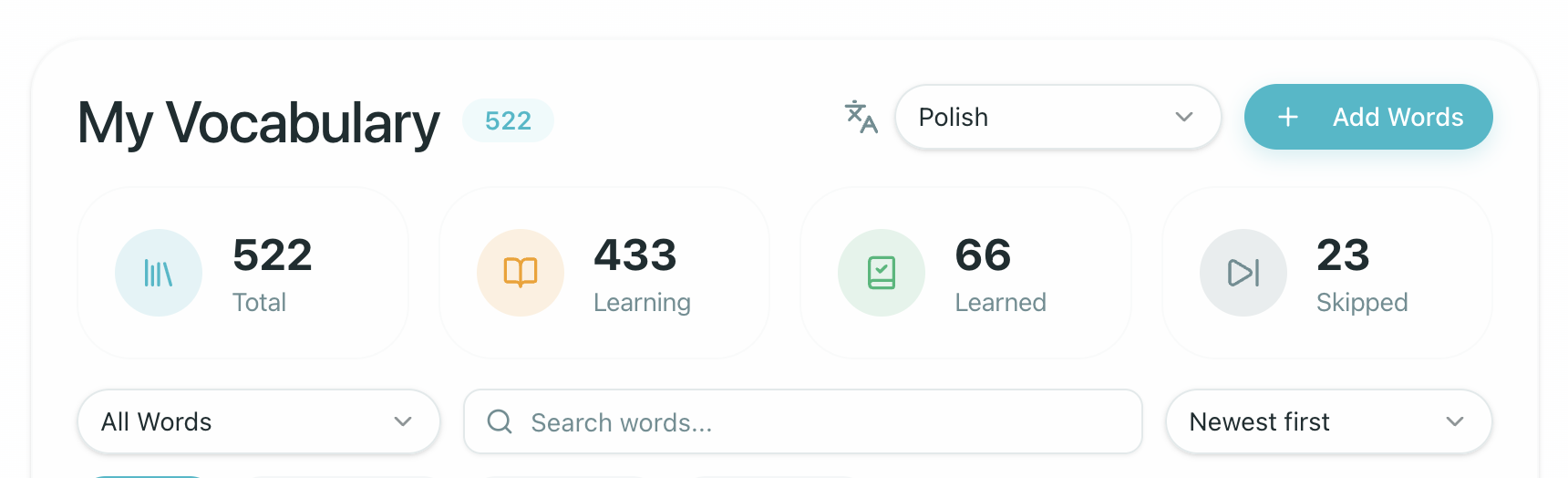
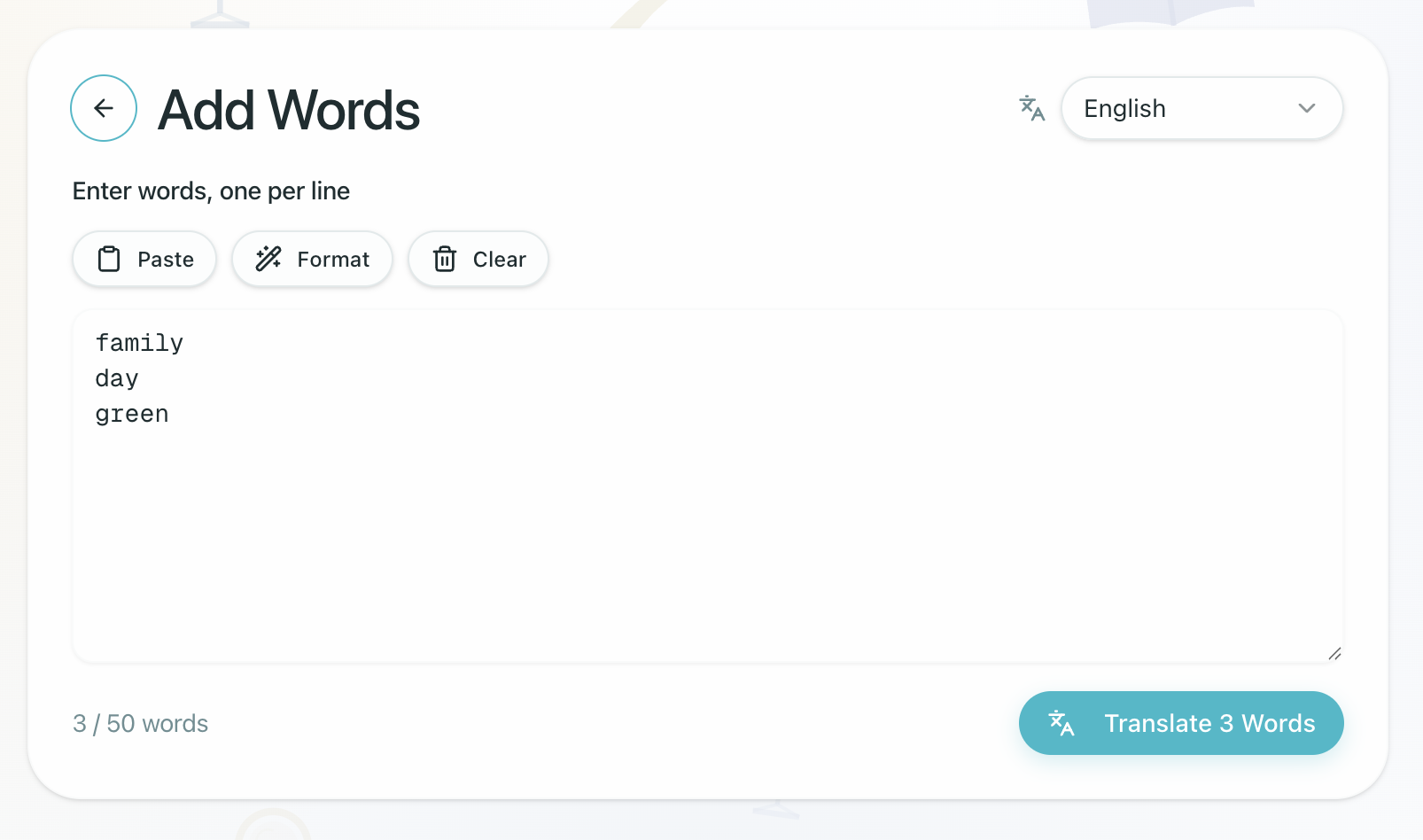
Go to /platform/vocabulary and click "Add Words". Search for a word, see its translation, and add it to your collection. You can select which vocabulary to add the word into, and edit the translation before saving to use your own definition.
The "Format" button on the Add Words page (/platform/vocabulary/add) helps you add multiple words at once. If any line contains more than 2 words in a row, clicking Format will attempt to split the text into individual words and phrases.
From a Lesson
While working through a lesson, you can add words directly:
- Translator tool — open the dedicated translator panel and add words from there
- Inline translation — select any word or phrase in the lesson text, and use the "Translate selected" option to see the translation and add it to your vocabulary
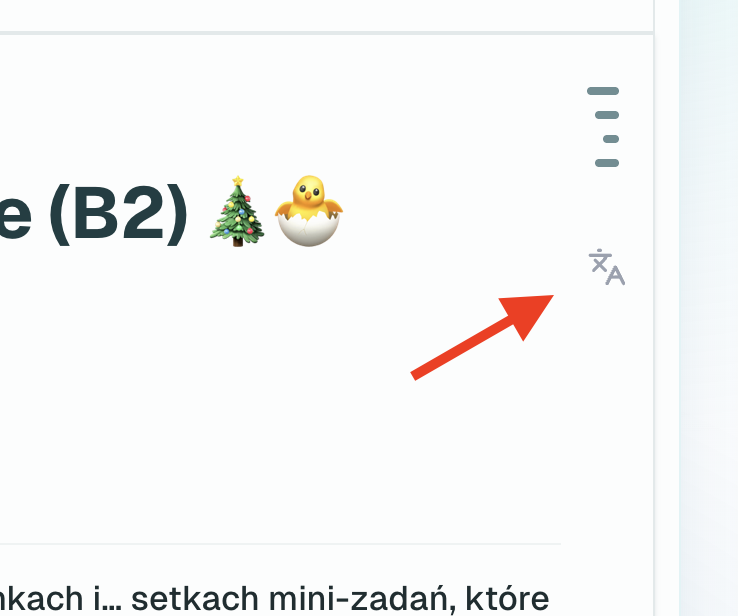
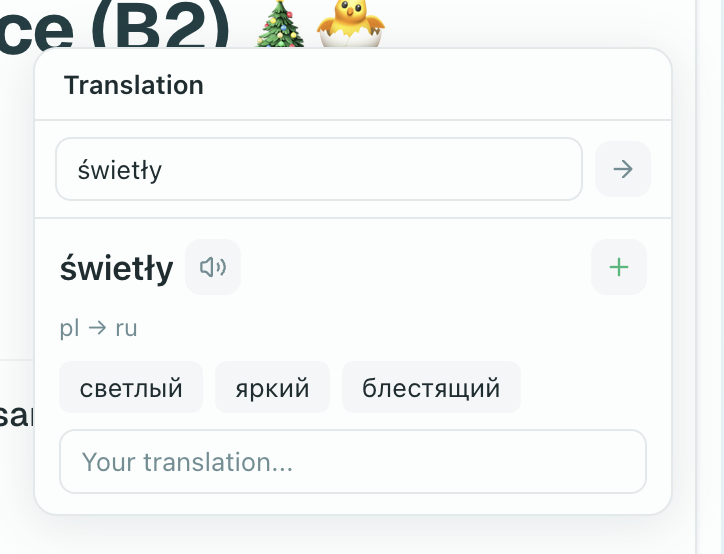
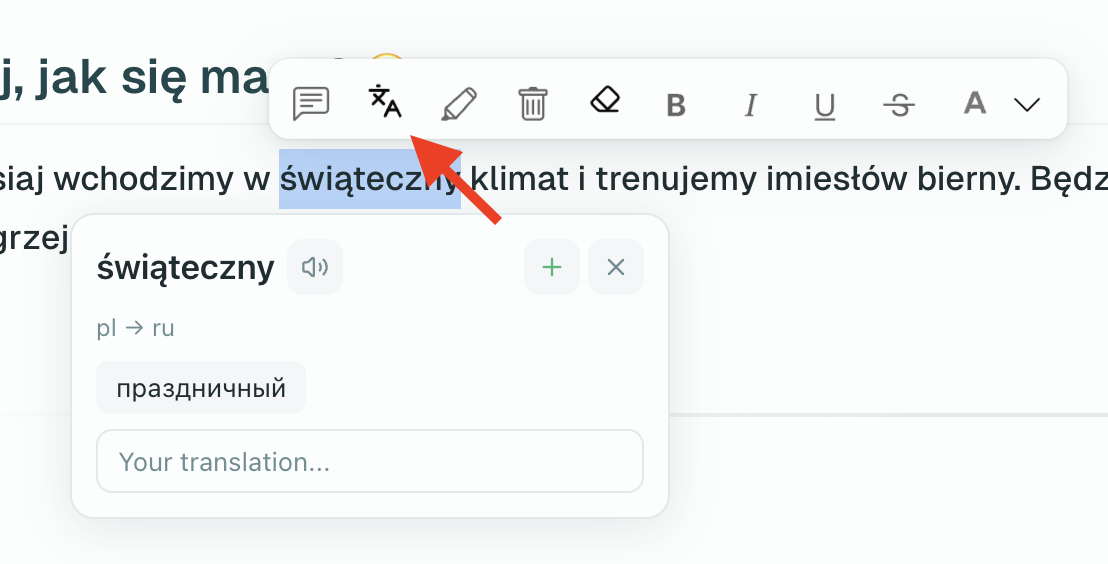
In both cases, you can define your own translation for the word before adding it.
Practicing with the Cards Game
Once you've added words, practice them at cards.speakly.pro.
The Cards game uses spaced repetition — words you struggle with appear more often, while mastered words are reviewed less frequently. Each word has a status:
| Status | Meaning |
|---|---|
| Learning | You're actively studying this word |
| Learned | You've correctly recalled it multiple times |
| Skipped | You marked it as already known |