S
Speakly.PRO

Schedule & Live Sessions

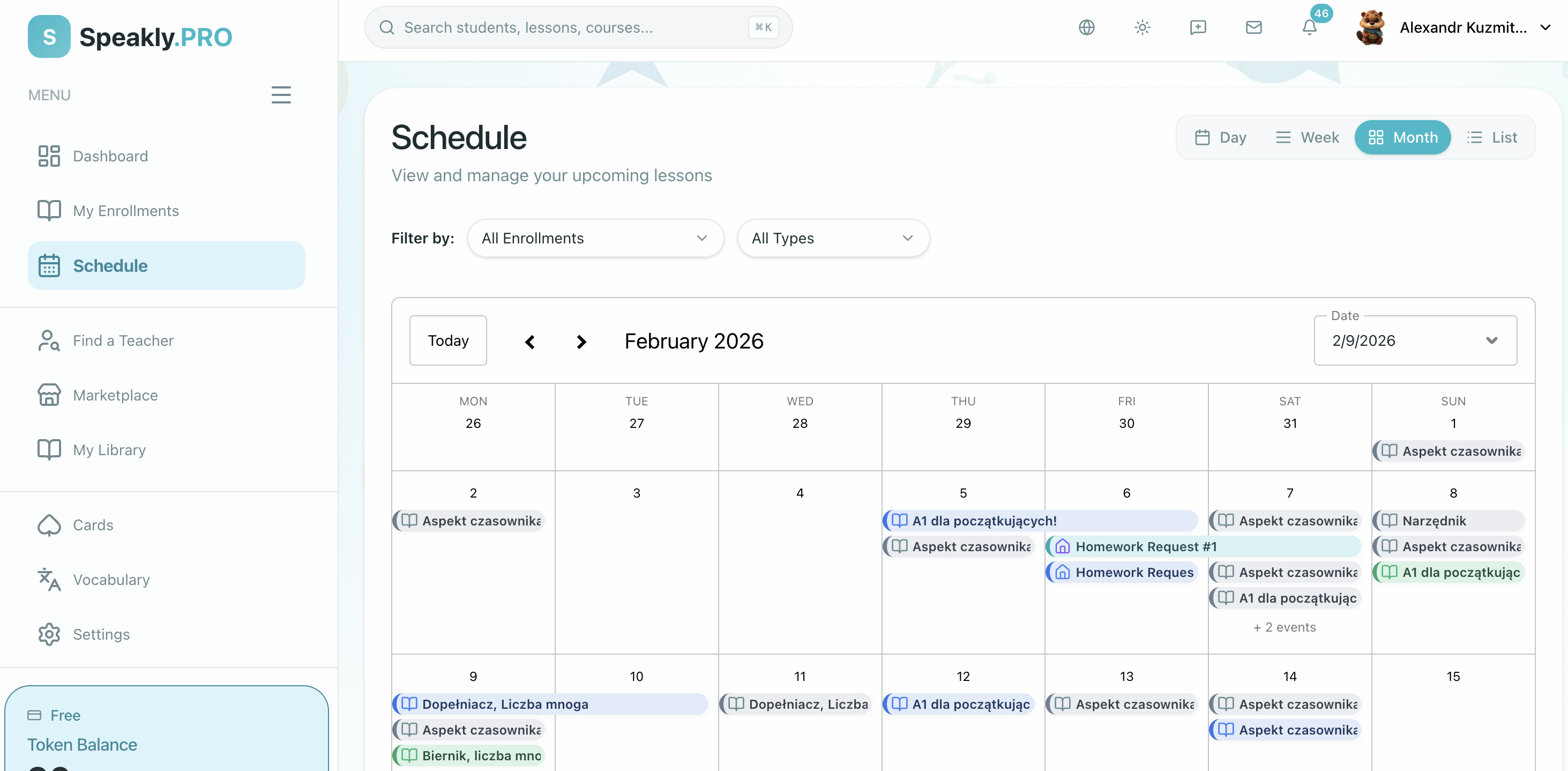
Manage your learning calendar, view upcoming events, and join live video sessions with your teacher on Speakly.PRO.

Understanding the Schedule

Your Schedule is your personal learning calendar that shows:

  • Upcoming live sessions with your teacher
  • Homework due dates
  • Scheduled lessons
  • Important reminders

Access: Click "Schedule" in the sidebar or navigate to /platform/schedule

Event Types and Color Coding

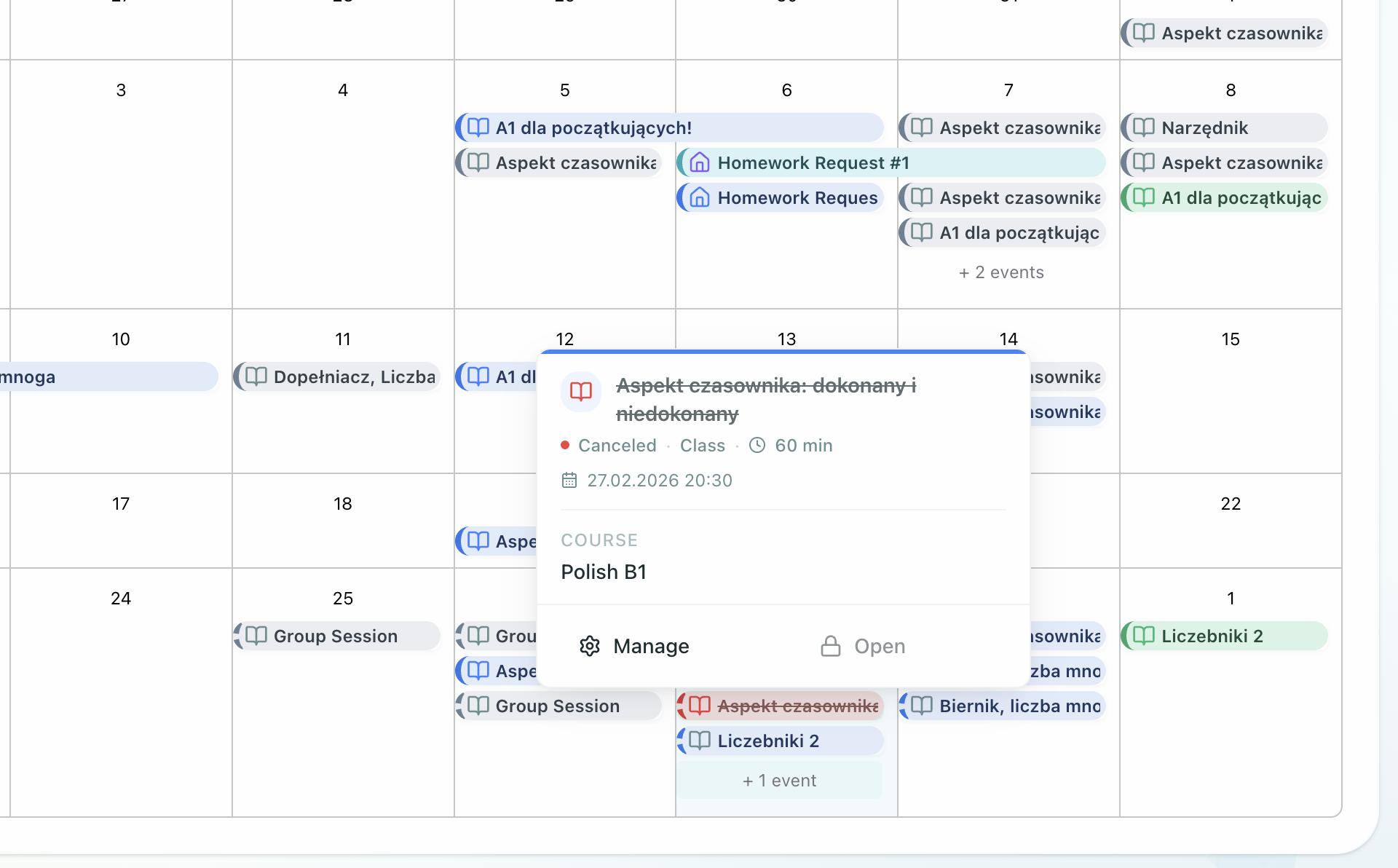
Your calendar color-codes events by their status, making it easy to see at a glance which lessons are upcoming, in progress, completed, or canceled.

Status Colors

StatusColorMeaning
AddedGrayLesson is scheduled but not yet started
StartedBlueLesson is currently in progress
PassedGreenLesson was completed successfully
VerifiedTealTeacher reviewed and confirmed completion
CanceledRedLesson was canceled

Nested Homework and Exercises

Homework and exercise assignments appear nested under their parent class lesson on the calendar, rather than as separate events. When you hover over a class lesson, the popup shows any attached homework or exercises with their type and status. This makes it easy to see everything related to a single class at a glance.

Managing Your Schedule

Filtering Events

Filter what appears on your calendar:

  1. By Type:

    • Show only live sessions
    • Show only homework
    • Show all events
  2. By Course:

    • Filter to specific course
    • View all courses
  3. By Time:

    • Today
    • This week
    • This month
    • Custom range

Live Sessions

Live sessions are real-time video classes with your teacher.

What Types of Live Sessions Exist?

There are two types:

  • Individual Sessions: One-on-one with your assigned teacher
  • Group Sessions: Multiple students in a shared classroom with a teacher

In group sessions, multiple students join the same live session. Students can see and interact with each other. The teacher can address the whole group or individual students, and each student's participation is tracked separately.

What to Expect

Before the Session:

  • Join link becomes active 5-10 minutes before start
  • Calendar reminder sent (if enabled)
  • Prepare materials mentioned by teacher
  • Test your camera and microphone

During the Session:

  • Video and audio communication via our internal conference platform
  • Screen sharing (teacher may share materials)
  • Interactive Lesson — collaborative lesson workspace where you and your teacher work simultaneously on exercises, multimedia content, and other lesson materials in real time
  • Group chat -- send and receive text messages with the teacher and other participants in real time. Use it to ask questions, share answers, or follow along with written instructions.
  • Lesson switching -- in individual sessions, your teacher may switch to a different lesson during the call. The lesson content updates automatically while the video call continues.
  • Edit permissions — in individual sessions, your teacher may toggle whether you can edit the shared document. If permissions change, you will see a notification immediately.

After the Session:

  • Your teacher may assign homework based on the lesson
  • Your teacher may rate the class and leave a comment
  • You can continue working on exercises from the lesson material at your own pace — the lesson document is your own copy, so feel free to edit, annotate, and rework it as you like

We encourage both teachers and students to make marks and notes directly in the lesson document during class, so your copy retains all the context from the session.

Joining a Live Session

Method 1: From Calendar

  1. Find the session on your calendar
  2. Click on the event
  3. Click "Join Session" button
  4. Video call opens in new tab/window

Method 2: From Dashboard

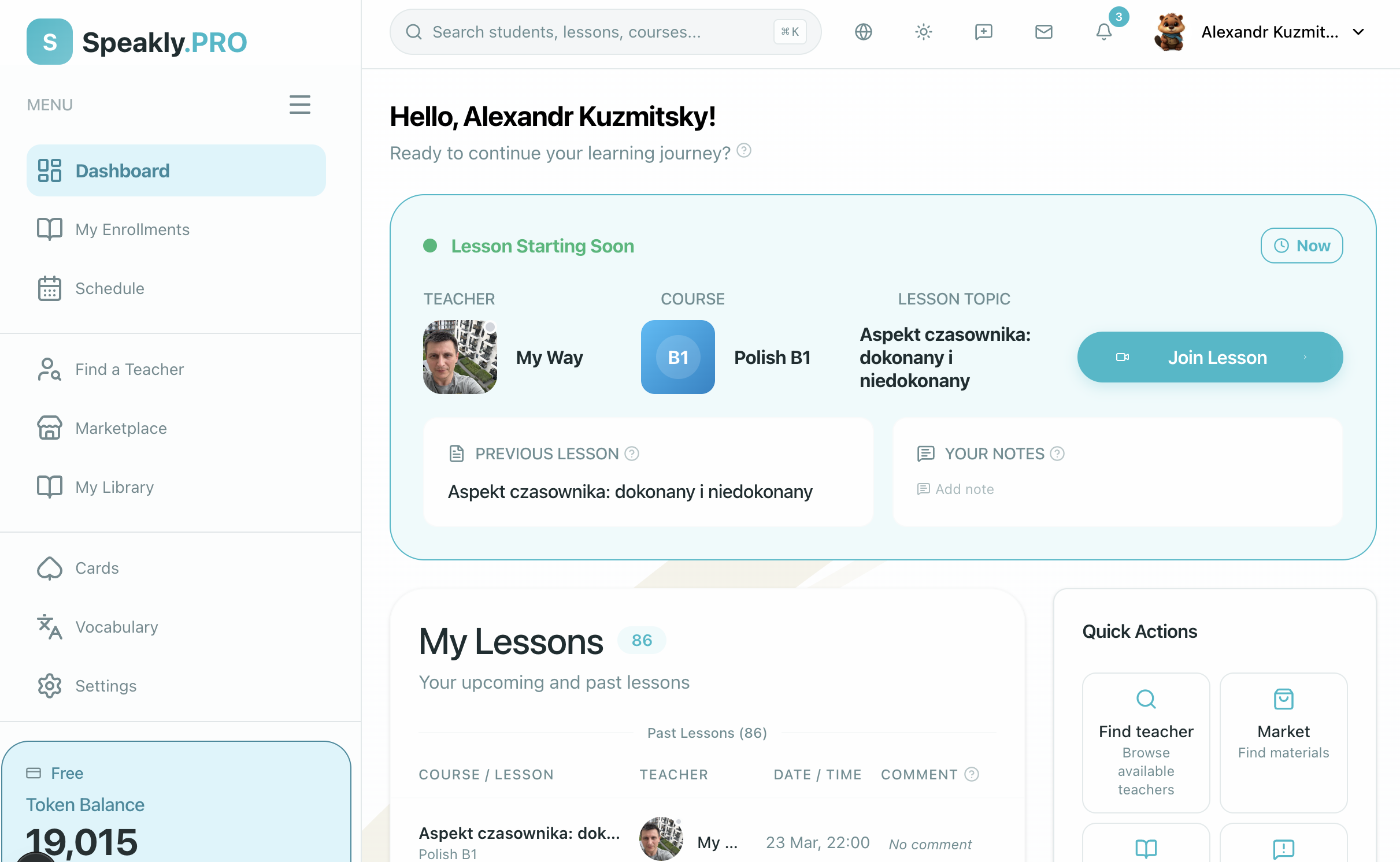
  1. Look for "Upcoming Live Session" card
  2. Shows next session with countdown
  3. Click "Join" when active

Method 3: From Notification

  1. Click notification about upcoming session
  2. Click "Join Now" button
  3. Enter the session

Rescheduling

When You Can Reschedule

You may be able to reschedule if:

  • Teacher has enabled rescheduling
  • Sufficient notice is given
  • Alternative time slots available

How to Reschedule

  1. From Calendar:

    • Click on the event
    • Click "Reschedule"
    • Select new date/time from options
    • Submit request
  2. From Event Details:

    • Open full event details
    • Find "Reschedule" option
    • Choose new time
    • Confirm change

Reschedule Requests

All reschedule requests require teacher approval:

  1. You submit a reschedule request with your preferred new time
  2. Your teacher receives a notification about the request
  3. The teacher reviews and either approves or declines
  4. You receive a notification with the decision
  5. If approved, your calendar updates automatically with the new time

Canceling a Lesson

If you need to cancel a scheduled lesson entirely (rather than move it to a different time), you can do so directly from the calendar or the dashboard.

When You Can Cancel

  • The lesson status must be Added (not started, passed, or already canceled)
  • Class lessons must be more than 12 hours away — if it's within 12 hours, use Reschedule instead
  • Homework and exercise lessons can be canceled at any time regardless of schedule
  • Only your own lessons can be canceled

How to Cancel

From the Calendar:

  1. Click on the lesson event
  2. Click Cancel Lesson
  3. Enter a reason for cancellation (required)
  4. Confirm the cancellation

From the Dashboard (Upcoming Lessons):

  1. Find the lesson in your upcoming lessons list
  2. Click the X button next to it
  3. Enter a reason for cancellation
  4. Confirm

Canceling a lesson cannot be undone. If you're unsure, consider rescheduling instead. Within 12 hours of the lesson, cancellation is disabled — use Reschedule.

After Cancellation

  • The lesson status changes to Canceled (shown in red on the calendar)
  • Your teacher receives a notification about the cancellation with your reason
  • The cancellation details (who canceled, when, and why) are visible when hovering over the event on the calendar

Notifications & Reminders

Reminder Types

Upcoming Session:

  • 24 hours before
  • 1 hour before
  • 15 minutes before

Homework Due:

  • 48 hours before
  • 24 hours before
  • Day of deadline

Schedule Changes:

  • Immediate notification
  • Email and in-app

Managing Reminders

  1. Go to ProfileNotifications

  2. Find "Schedule" section

  3. Toggle reminder types:

    • Email reminders
    • In-app notifications
  4. Set timing preferences

  5. Save changes

Time Zones

Understanding Time Zones

The platform handles time zones automatically:

  • Events show in your local timezone
  • Teacher's timezone displayed for reference
  • Conversion happens automatically
  • Daylight saving time accounted for

Setting Your Timezone

  1. Go to ProfileSettings
  2. Find "Timezone" field
  3. Select your timezone from dropdown
  4. Save changes
  5. All times update immediately

Set your timezone correctly to avoid missing sessions! Incorrect timezone settings are the most common cause of missed live classes.

Troubleshooting

Can't Join Live Session

  1. Check Timing:

    • Verify current time vs. session time
    • Check timezone settings
    • Ensure session hasn't ended
  2. Technical Issues:

    • Refresh the page
    • Try different browser
    • Check internet connection
    • Disable VPN if using
  3. Permissions:

    • Allow camera/microphone access
    • Check browser permissions
    • Try incognito mode

Calendar Not Loading

  1. Clear browser cache
  2. Refresh page
  3. Check internet connection
  4. Try different browser

Wrong Times Showing

  1. Check profile timezone setting
  2. Verify computer timezone
  3. Contact teacher to confirm session time
  4. Check daylight saving time changes

Reschedule Not Working

  1. Verify rescheduling is enabled
  2. Check if within allowed timeframe
  3. Ensure alternative slots available
  4. Contact teacher directly

Next Steps